

In an increasingly digital world, sharing memories through photos has become a cherished part of our online interactions. Facebook Groups serve as virtual communities where friends, family, and like-minded individuals gather to exchange stories, insights, and, of course, snapshots that capture fleeting moments.Though,many iOS users have experienced the frustration of photos not loading properly in these vibrant spaces. Weather you’re trying to relive a special event or simply share a fun update, connectivity issues can put a damper on your experience. Fear not! In this article, we will explore practical troubleshooting tips to help you resolve photo loading issues in Facebook Groups on your iOS device. From simple fixes to more involved solutions, we aim to restore your ability to connect and share seamlessly in your favorite online communities. Let’s dive into the world of troubleshooting and reclaim your photo-sharing joy!
understanding the Common causes of Photo Loading Issues
When encountering issues with photos not loading in Facebook Groups on iOS, several factors might be at play. One common cause is network connectivity problems. A weak or unstable Wi-Fi connection can hamper the ability to download images, leading to frustrating delays or complete failures in loading. Additionally, being connected to a public or restricted network can impose limitations on data usage, inadvertently blocking photo access. Always check your internet connection and, if needed, switch to a reliable Wi-Fi network or toggle your mobile data.
Another potential culprit is related to the app’s cache and storage management.Over time, the app may accumulate needless cache data that could interfere with photo loading capabilities. Clearing the app cache or even reinstalling the app can often resolve these issues. Also, ensure that the app is updated to the latest version, as developers frequently release patches to fix bugs and optimize performance.Keeping your iOS updated is equally crucial, as system updates can enhance compatibility with apps and resolve underlying issues.
Assessing Your Internet Connection for Optimal Performance
Before diving into potential solutions for slow photo loading in Facebook groups, it’s essential to determine the speed and stability of your internet connection. Performing a bandwidth test can definitely help you gauge whether a sluggish connection is the culprit behind your frustrations. You can use tools like speedtest.net or fast.com to evaluate your current upload and download speeds. Strong, consistent connection speeds typically fall within the following ranges:
| Connection Type | Recommended Speeds |
|---|---|
| Dial-Up | 56 Kbps |
| DSL | 1-10 Mbps |
| Cable | 10-100 Mbps |
| Fiber | Speed varies, often >100 Mbps |
Once you’ve assessed your connection, consider optimizing it for better performance. Pay attention to factors that might slow your internet speed, such as:
- Network Congestion: Other devices using the same network can bog down your speed.
- Wi-Fi Range: Being too far from your router can lead to a weak signal.
- Background Applications: apps operating in the background may consume bandwidth.
- ISP Issues: Verify if your Internet Service Provider is experiencing outages or maintenance.
Updating the Facebook App: Why It Matters
Keeping the Facebook app up-to-date is crucial for a seamless user experience, especially when it comes to troubleshooting issues like photo loading in groups. Developers consistently roll out updates that not onyl introduce new features but also fix bugs that may hinder your app’s functionality.When you run an outdated version, you may encounter various problems, such as slow performance or inability to load media content, which can be particularly frustrating in communal spaces like Facebook Groups where images are frequently enough central to discussions.
Additionally,regular updates help keep your app secure. Cyber threats are ever-evolving, and when you update your app, you benefit from the latest security enhancements that protect your data and privacy. By ensuring that your app is on the latest version, you can enjoy faster loading times and reduced glitches when browsing photos in groups.Here are some key reasons why updating matters:
- Improved Performance: Experience faster loading speeds and reduced lag.
- Bug Fixes: Address previous issues that may affect media loading.
- Enhanced Security: Protect your personal information from potential threats.
- New Features: Access latest tools and functionalities that enhance interaction.
Clearing Cache and Data: A Step-by-Step Guide
Clearing cache and data can significantly improve the functionality of your Facebook app, especially when you’re experiencing photo loading issues in groups. Follow these steps to clear the cache on your iOS device:
- Open Settings: Locate the settings app on your home screen and tap to open it.
- Select General: Scroll down and choose the ‘General’ option.
- iPhone Storage: In General settings, tap on ‘iPhone Storage’ to view all installed apps.
- Find Facebook: Scroll down to find the Facebook app and select it.
- delete App: Sence iOS does not allow you to clear cache directly, tap ‘delete App’ to remove facebook.
- Reinstall Facebook: Go to the App Store, search for Facebook, and reinstall it.
Clearing the app and its cache can solve many underlying issues. If you’re still facing problems with photos loading after reinstalling, you may want to check your internet connection and ensure you’re using the latest version of iOS. If necessary, restart your device for any changes to take effect:
| step | Description |
|---|---|
| Check Connection | Ensure you have a stable Wi-fi or cellular data connection. |
| Updating iOS | Go to Settings > General > Software Update to ensure your device is up to date. |
| Device Restart | Press and hold the power button and swipe to turn off; then turn it back on. |
Adjusting iOS Settings for Enhanced Compatibility
To enhance compatibility and ensure smooth operation of Facebook Groups on your iOS device, it’s vital to adjust certain settings. Start by verifying your Wi-Fi connection and ensuring a stable internet connection. Navigate to Settings > Wi-Fi and reconnect to your network if necessary. Additionally, check that your Cellular Data is turned on for Facebook. This can be done by going to Settings > Cellular and scrolling down to find the Facebook app. Enable cellular access if it’s disabled, allowing the app to function optimally in areas with weak Wi-Fi.
Moreover, adjusting the Low Data Mode can make a notable difference.This feature can limit background activity that may interfere with loading images. To disable it, go to Settings > Cellular > Cellular Data Options and toggle off Low Data Mode. It’s also advisable to check the Background App Refresh settings. Allowing Facebook to refresh in the background can enhance performance. To do this, navigate to Settings > General > Background App Refresh and ensure that it is indeed enabled for Facebook. Taking these steps can significantly improve your experience and resolve any photo-loading issues.
Exploring Alternative solutions: Using Web Browsers
If you’re facing persistent photo loading issues in Facebook Groups while using an iOS device, switching to a web browser can serve as an effective workaround. Browsers like Safari, Chrome, or Firefox frequently enough bypass some of the app-specific glitches that may cause trouble. By accessing Facebook via a web browser, you might enjoy a smoother experience without the bugs associated with the app. To get started, simply launch your preferred browser and navigate to the Facebook website. Sign in with your credentials and check if the images load correctly in the groups you’re a part of.
In many cases, using a web browser offers enhanced flexibility, including the option to clear cache or disable extensions that may interfere with loading processes. Here are a few key benefits of using web browsers for Facebook Group interactions:
- Improved Loading Times: Browsers can sometimes load images more quickly than apps.
- customizable Settings: You can easily manage privacy settings or clear browsing data.
- Better Accessibility: Features like zoom and reader modes frequently enough enhance user experience.
In addition to the advantages, be aware of the occasional layout adjustments that come with browser access. Here’s a quick comparison of the differences between using the app and the web browser:
| Feature | App | Web Browser |
|---|---|---|
| Loading Speed | Moderate | Fast |
| User Interface | compact | Expansive |
| Access to Settings | Limited | Comprehensive |
Reporting Persistent Problems: How to Seek Help from Facebook
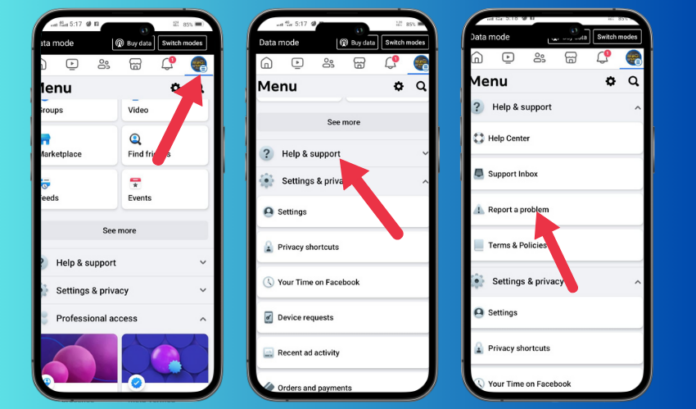
If you’ve followed all troubleshooting steps and are still encountering issues with photo loading in Facebook Groups, it might potentially be time to seek help directly from facebook. They can assist with specific glitches related to your account or app. Start by visiting the Facebook Help Center. Here, you can browse through frequently asked questions and gather insights on common problems faced by users. If your issue persists, consider submitting a report via the Help Center. Be clear and concise in your description to expedite the process.
When reporting persistent problems, make sure to include the following details in your submission:
- Device Type: Mention that you are using an iOS device.
- App Version: Include the version of the Facebook app installed.
- Detailed Description: Explain the photo loading issue clearly, including when it started and any error messages you may have received.
- steps Taken: List any troubleshooting methods you’ve tried so far.
Additionally, consider posting in relevant community forums or Facebook groups dedicated to troubleshooting. Users with similar experiences may offer practical insights and solutions that could resolve your issues quicker than waiting for a response from Facebook’s support team.
Preventive Measures for Future Photo Loading Challenges
To mitigate photo loading issues in Facebook groups on iOS devices, implementing preventive measures is essential. Regularly update your facebook app to benefit from the latest bug fixes and performance enhancements. Additionally, maintaining adequate storage on your device can significantly influence loading times. Ensure that you periodically check for unnecessary apps or files that may be consuming valuable space. When you keep your iOS updated, along with the Facebook app, you enhance compatibility and performance.
Moreover, considering network connectivity is vital in preventing photo loading problems. Using a stable and fast Wi-Fi connection can improve your overall experience. Whenever possible, connect to a reliable network rather of relying on cellular data. Here’s a quick checklist to help you optimize your device for smoother photo uploads:
- Clear cache: Regularly clear your app cache to prevent file build-up.
- Close background apps: Free up resources by shutting down other applications.
- check app permissions: Ensure Facebook has the necessary access to your camera and photos.
- Reboot your devices: Restarting can solve connectivity or performance issues.
Enhancing Group Engagement through Effective Media Sharing Techniques
To cultivate a vibrant community within Facebook groups, sharing media effectively can play a pivotal role. When group members experience issues like photo loading problems on iOS,it can dampen the enthusiasm for interaction.To mitigate such challenges, it’s essential to ensure that high-quality images are compressed before uploading, allowing for quicker loading times and smoother viewing experiences. Additionally, encouraging users to check their app settings and network connections can significantly enhance media engagement. Here are some key tips to help troubleshoot photo loading issues:
- Ensure that the Facebook app is updated to the latest version.
- Clear the app cache regularly to improve performance.
- Check if your network connection is stable, switching between Wi-Fi and cellular data if necessary.
Beyond these tips, understanding usage patterns can enhance overall media engagement in your group. Creating a shared guide or FAQ can help members troubleshoot common issues and ensure they have the knowledge to rectify problems independently. Below is a simple resource guide that captures essential troubleshooting steps for members:
| Issue | solution |
|---|---|
| Photos not loading | Reconnect to Wi-Fi or switch to mobile data. |
| App crashes | Update the app or restart the device. |
| Missing photos | Check privacy settings; ensure the photos are public. |
Q&A: Troubleshooting Tips for Photo Loading Issues in Facebook Groups on iOS
Q: Why are photos not loading in my Facebook Groups on iOS?
A: Several factors can contribute to this issue. It could be a slow internet connection, app glitches, or even a problem with the Facebook server itself. Checking each of these elements can definitely help narrow down the problem.
Q: What steps can I take to troubleshoot my internet connection?
A: Start by switching between Wi-Fi and mobile data to see if the problem persists. Restarting your router can also improve connectivity. Try opening other apps or websites to confirm that it’s a Facebook issue and not a broader connectivity problem.
Q: I’ve tried troubleshooting my internet, but photos still won’t load.What’s next?
A: Clear the app cache by going to your iPhone’s Settings > Facebook > Offload App. This temporarily removes the app but keeps its documents and data. After offloading, reinstall the app. This can resolve issues stemming from corrupted files or data.
Q: Is my Facebook app up to date affects photo loading?
A: Absolutely! Running an outdated version of the app can lead to performance issues and bugs. Go to the app Store, search for Facebook, and check for any available updates. An updated app is more likely to resolve loading issues and improve overall performance.
Q: What if I’m still having problems after updating?
A: Try logging out and then logging back into your Facebook account.Sometimes, a simple re-login can refresh your session and resolve image-loading errors. Also,consider checking for any restrictions or settings that may limit photo access in your group.
Q: Does enabling battery saver mode affect photo loading on facebook?
A: Yes, enabling battery saver mode can limit background data usage, which may affect the loading of photos in the facebook app. Disabling battery saver mode can help enhance performance.
Q: Should I try deleting the Facebook app altogether?
A: If other troubleshooting steps have failed,uninstalling the app might potentially be worth a shot. After deleting, restart your device and then reinstall the app from the App Store. This can resolve deeper issues that other steps might not address.
Q: What if I notice that this issue is happening with other users in the group?
A: If multiple users are experiencing photo loading issues, it could indicate a server-related problem on Facebook’s end. In such cases, patience is key—monitor the situation and try again later.
Q: When all else fails, where can I seek additional support?
A: If you’re still struggling, consider reaching out to facebook’s Help Center. You can also join online forums or community groups where users share their experiences and solutions related to Facebook issues.
Q: Are there any preventive measures I can take to avoid these issues in the future?
A: To keep photo loading issues at bay, regularly update your app, maintain a stable internet connection, and periodically clear the app cache.Staying proactive can help keep your Facebook experience running smoothly.
Feel free to utilize these insights to enhance your Facebook Group experience, ensuring memories are shared without frustration!
As you navigate the vibrant world of Facebook groups, encountering photo loading issues can be frustrating. However, with the troubleshooting tips outlined in this article, you’re now equipped to tackle these common hiccups head-on. Whether it’s clearing cache, updating your app, or adjusting your network settings, each solution is a step towards restoring the seamless experience you expect. Remember, technology can be unpredictable, but with a little patience and the right strategies, you can keep the conversation flowing and the images loading.So go ahead,dive back into your favorite groups,and reconnect with the moments that matter most—after all,every picture tells a story waiting to be shared. Happy scrolling!
